
ADVERTISEMENT
File Tab
The Microsoft Office Backstage view may appear when you start a Microsoft Office program or click the File Tab. Whether you need to create new files, open existing files, print, save, or change settings, you can do it in Backstage.
When you first launch Microsoft Office 2010, 2013, 2016, or 2019, the Backstage view, the Start page, is displayed.
Create new file
To create a new file, you can click the New button to view the list of available templates or browse other templates to get started. advice.
You can click the “Blank” template to start with a clean, blank file.

Open an existing file

Click the “Open” button on the left navigation bar to see a list of recently edited files. If the file you want is not listed, the location of the file is also displayed, and you can browse for the file.
If you have a file you want to make sure you always have in your recent list, you can pin that file to the list.
Hover your mouse over the file name and a pin icon will appear to the right of the file name. Click to pin the file so that it always appears in the list. To unpin a pinned item, click the pin again.
To remove an item from the recent list, right-click on the file and choose “Remove from list“.
Save a new copy

Save as lets you quickly create a copy of the current file. This is handy if you need a second copy in a different location, or if you want to make a copy of this file so you can make changes without affecting the original file. You’ll find this command on the navigation pane to the left.
Print or print preview
Whether you actually want to send this file to a printer, or just use Print Preview to see how it would look if you did, you’ll find the Print command on the Backstage navigation pane as well.

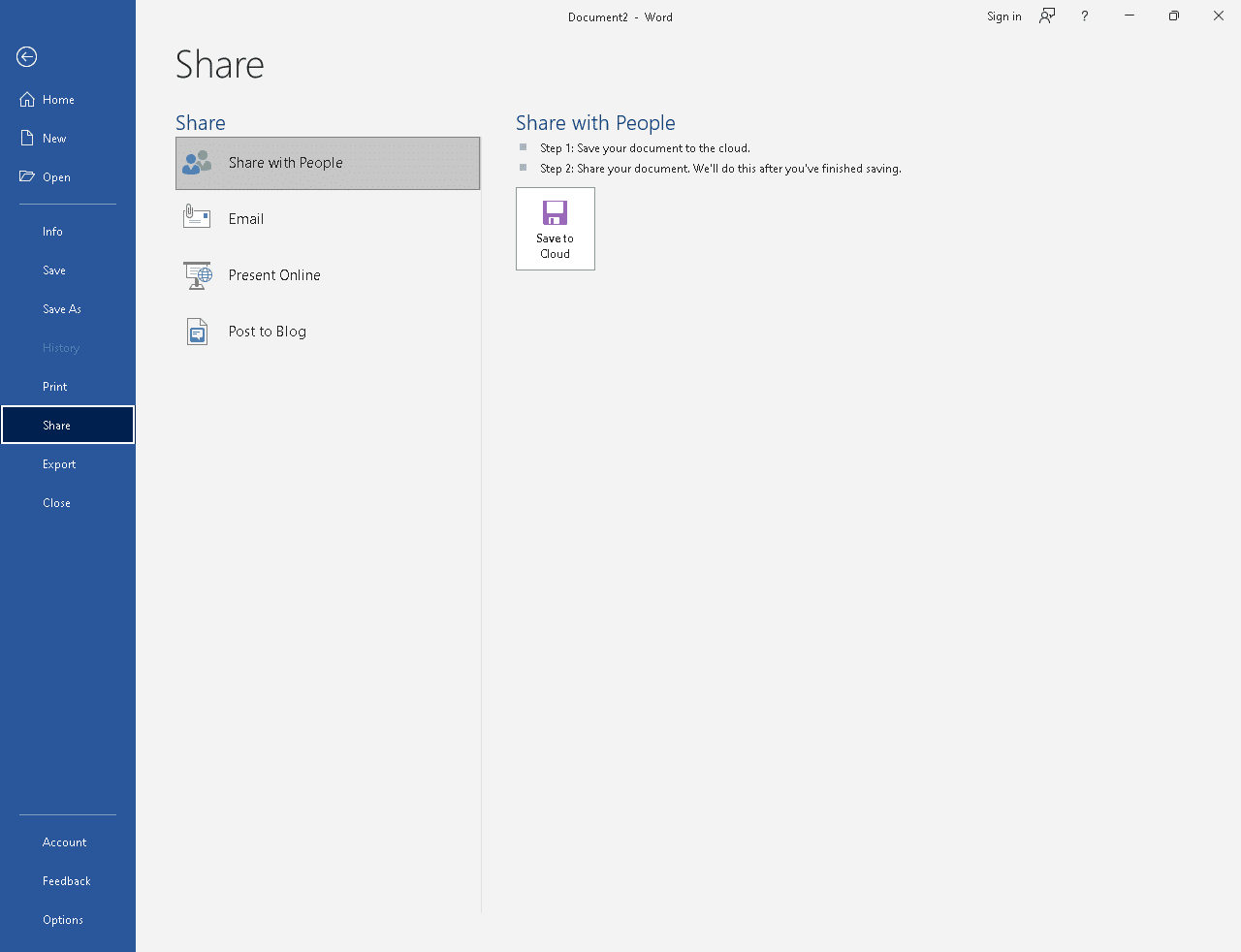
Share with others
If you want to collaborate on a file, the Share command can help. Click Share, enter the email address of the person you want to share the file with, then click Send.
Management office
At the bottom of the navigation bar are two items that help you manage how Office works.
- Accounts – Add or remove accounts for cloud services such as OneDrive or SharePoint to easily save or open files from these services.

- Options – You can configure your application here. Everything from color themes to spellcheck options, editing languages options, default file locations, and more.

In the following table, you will find the introductory steps to work with documents in Office 2019 applications:
